

Images guide
YouTube Thumbnail Size Guide: Best Dimensions & Aspect Ratio
For a regular YouTube video, start with a 1280 × 720 pixel thumbnail at a 16:9 aspect ratio. For vertical Shorts artwork, use a 9:16 layout, then check YouTube's current upload requirements before publishing.
By FreeToolsNexus Team · Last updated
Try the tool
- Image Resizer Resize images by exact pixels, a percentage, or a social-media preset — with aspect-ratio lock and batch ZIP output, all in your browser.
- Image Cropper Crop an image with a draggable box and aspect-ratio presets, rotate and zoom, and export at full resolution — privately in your browser.
- Image Format Converter Batch convert images between JPG, PNG, WebP and AVIF — with quality control, resizing and ZIP download, entirely in your browser.
- Image Compressor Reduce image file size with an adjustable quality slider — processed entirely on your device.
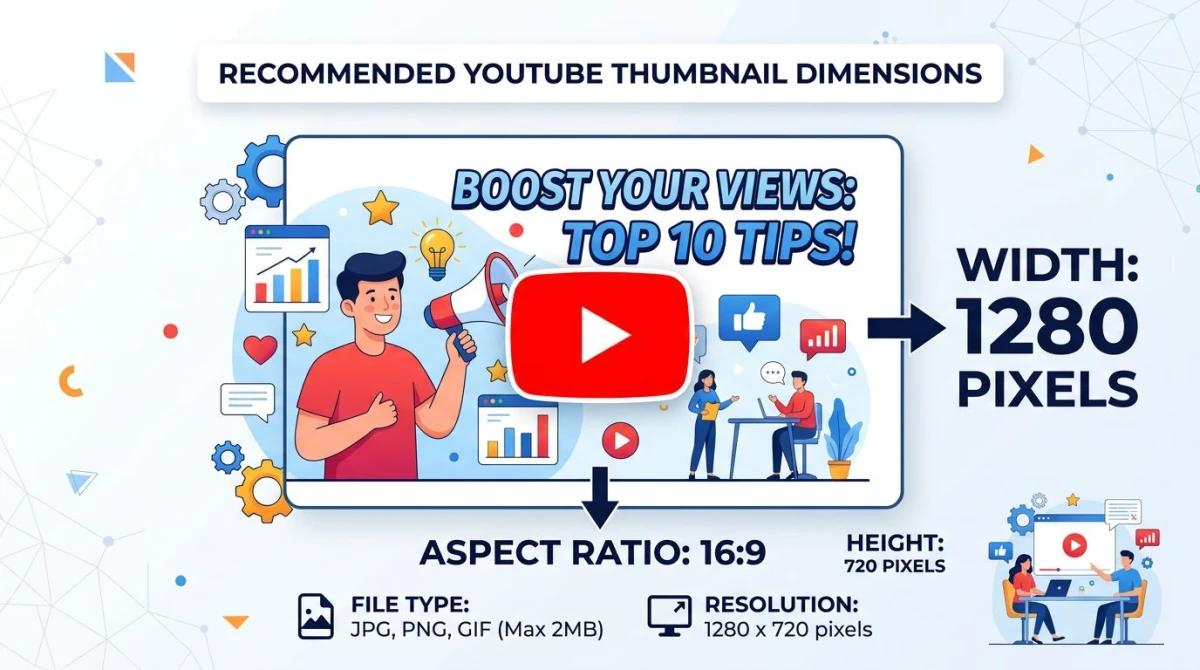
The supplied infographic shows the recommended 1280 × 720 pixel canvas for a standard thumbnail.
Recommended YouTube thumbnail dimensions
For a regular YouTube video, a 1280 × 720 pixel canvas at a 16:9 aspect ratio is a practical starting point. The source lists a minimum width of 640 pixels and high-resolution uploads up to 3840 × 2160 pixels. Specifications can change, so check YouTube Help for current upload requirements before publishing.
| Specification | Practical setting |
|---|---|
| Regular video canvas | 1280 × 720 pixels |
| Regular video aspect ratio | 16:9 |
| Listed minimum width | 640 pixels |
| Listed high-resolution upload size | Up to 3840 × 2160 pixels |
| Common formats | JPG or PNG |
| File size limit in the source | Depends on upload device; confirm current limits |
The 16:9 shape matches a widescreen video frame. Using it for regular-video artwork helps avoid unnecessary borders or cropping. Keep the image proportional when resizing so that faces, products and text do not become stretched.
Regular video and Shorts thumbnail shapes
Regular videos use a widescreen 16:9 layout. Shorts are designed for vertical viewing, so 9:16 is a useful shape for vertical thumbnail artwork; 1080 × 1920 pixels is a practical canvas to prepare.
The PDF notes that YouTube may show vertical videos differently across its surfaces. In some placements, a custom 16:9 thumbnail for a vertical video may be replaced by an automatically generated 4:5 thumbnail. Keep important text, faces and other key details away from the outer edges, and preview the result in the places where viewers will see it.
How to resize an image for a YouTube thumbnail
- Choose a clear source image. Use a frame, product photo or original graphic that accurately represents the video.
- Set the canvas size. Open the Image Resizer and use its YouTube thumbnail preset, or enter 1280 × 720 pixels for a regular video. Keep the aspect ratio locked when resizing so the image does not stretch.
- Crop to the composition. Use the Image Cropper with its 16:9 ratio option if the source is square, vertical or otherwise too narrow. Review the crop so that faces, text and products remain visible.
- Choose an output format. JPG works well for photographs; PNG is useful for graphics with crisp lettering or transparent source artwork. Use the Image Format Converter if you need to change formats.
- Reduce file size only if needed. If the image exceeds the applicable limit, use the Image Compressor and compare the result with the original. Avoid settings that make text or edges look soft.
- Preview at a small size. Check whether the main subject and any short text are still easy to understand when the image is reduced.
- Upload through YouTube Studio. Confirm the current file requirements before selecting the finished image.
Design a thumbnail that reads clearly
Correct dimensions help an image fit, but the composition helps viewers understand what a video offers.
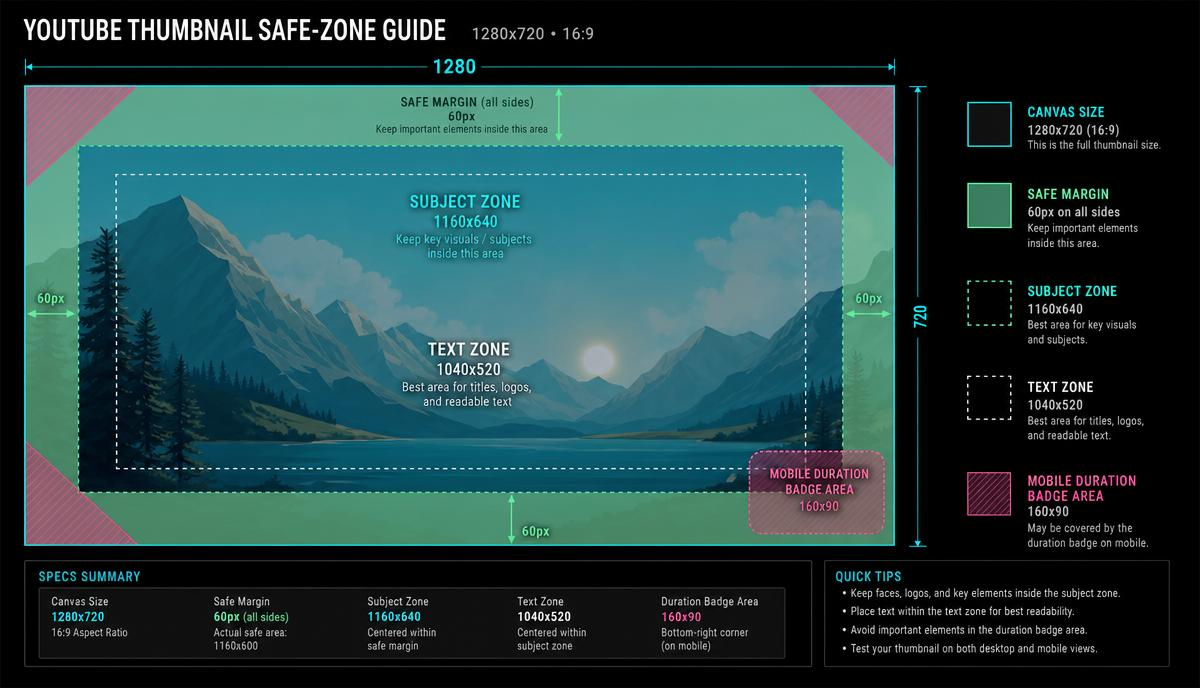
Use the supplied safe-zone graphic as a composition aid; thumbnail crops and overlays can vary by YouTube surface.
- Choose one focal point. Make the main subject—such as a face, product or result of a tutorial—easy to identify.
- Keep wording short. A few meaningful words in large, high-contrast type are easier to read on a phone than a sentence.
- Leave safe margins. Keep important text and visual details away from the edges because the image may appear at different sizes or crops.
- Match the video. Represent the actual content rather than making a misleading promise.
- Check a small preview. A design that looks clear full-size may become crowded in a feed.
- Compare variations thoughtfully. If thumbnail testing is available for your channel, compare eligible designs using relevant performance data rather than assuming one colour or layout always works best.
Common thumbnail problems
| Problem | Why it happens | What to try |
|---|---|---|
| The image looks blurry | A small source was enlarged or compressed too much | Start with a higher-resolution image and review it after resizing |
| The composition looks cropped | The source and target aspect ratios differ | Crop deliberately to 16:9, or redesign the background to fill the frame |
| Text is hard to read | Too many words or lettering that is too small | Use fewer, larger words and check a phone-sized preview |
| The file is too large | The image dimensions or encoding create a large file | Resize to the intended canvas or compress gradually while checking clarity |
| Important details disappear | Text or subjects sit too close to the edge | Move them toward the central area and preview different placements |
For more on choosing an image format, see JPG vs PNG vs WebP. If the file needs further optimization, read Compress Images Without Losing Quality.
Frequently asked questions
What is the best YouTube thumbnail size in pixels?
A 1280 × 720 pixel canvas is a practical standard for regular YouTube thumbnails. The source lists a minimum width of 640 pixels and high-resolution uploads up to 3840 × 2160 pixels. Check YouTube Help for current requirements.
What is the YouTube thumbnail aspect ratio?
Use 16:9 for regular video thumbnails. For custom Shorts thumbnail artwork, prepare a vertical 9:16 image and keep important content away from the edges.
What is the YouTube thumbnail size limit in MB?
The source lists 2 MB for mobile uploads and 50 MB for desktop uploads. These limits can change, so confirm the current requirement in YouTube Help or Studio before uploading.
Should I use JPG or PNG for a YouTube thumbnail?
JPG is a practical choice for photographs. PNG can keep text and graphic edges crisp. Choose a format that stays clear and meets the upload size limit.
Can I resize a thumbnail without losing quality?
Resizing can affect image quality, especially when enlarging a small source. Start with a high-resolution image, preserve its aspect ratio and review the result after resizing.
How can I make a thumbnail fit without cropping important content?
Start with a 16:9 canvas and place key text and subjects within the central area. Crop carefully or extend the background when the source image has a different shape.
Does a better thumbnail guarantee more views?
No. A thumbnail helps viewers understand and evaluate a video, but views also depend on the topic, title, audience, relevance and viewer response.
Try the tools in this guide
- Image Resizer Resize images by exact pixels, a percentage, or a social-media preset — with aspect-ratio lock and batch ZIP output, all in your browser.
- Image Cropper Crop an image with a draggable box and aspect-ratio presets, rotate and zoom, and export at full resolution — privately in your browser.
- Image Format Converter Batch convert images between JPG, PNG, WebP and AVIF — with quality control, resizing and ZIP download, entirely in your browser.
- Image Compressor Reduce image file size with an adjustable quality slider — processed entirely on your device.
Related guides
- JPG vs PNG vs WebP: Which Format to Use JPG, PNG and WebP compress images differently. Learn how each one works, where each fits best, and how to convert between them in your browser.
- Compress Images Without Losing Quality Shrink image files for email, uploads and websites while keeping them sharp. Learn what makes files large and the settings and order of steps that help.
Related tools
- JPG to PNG Converter Convert JPG (JPEG) images to lossless PNG — privately in your browser, one file or a whole batch.
- PNG to JPG Converter Convert PNG images to smaller JPG (JPEG) files, choosing a background colour to replace transparency.
- WebP to JPG Converter Convert WebP images to universally-compatible JPG (JPEG), with a background colour for any transparency.