

Documents guide
How to Compress a PDF Without Losing Quality
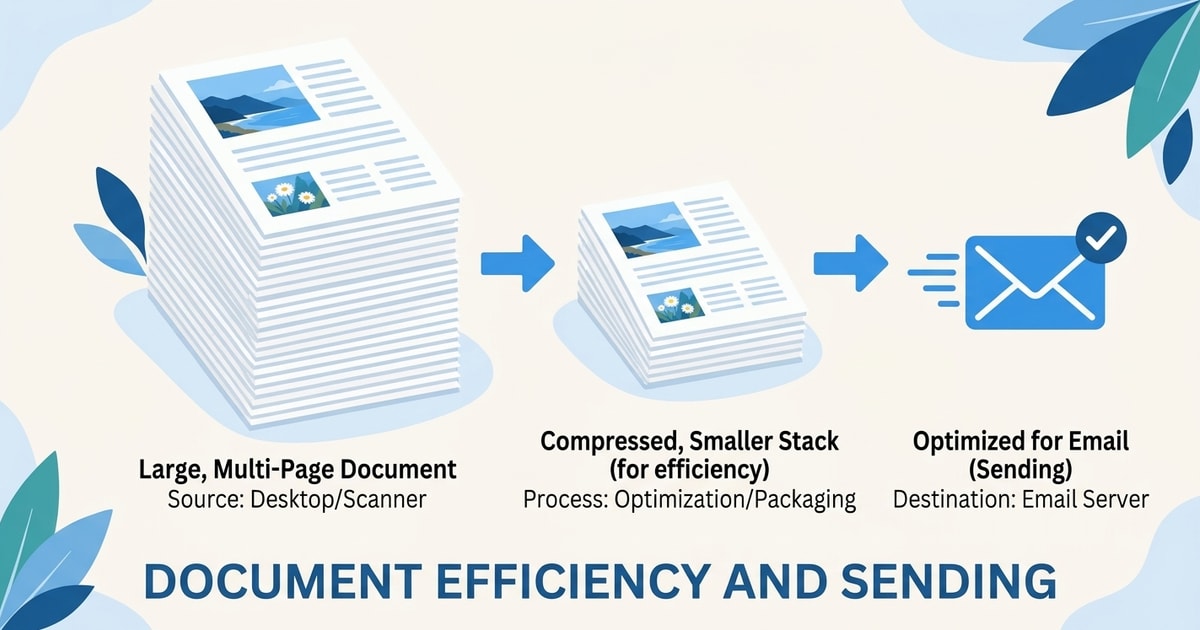
For the least change, start with lossless optimization and keep the original. If you use lossy compression, inspect text, images, links and forms before sharing. Our browser compressor uses a fixed, aggressive 72-DPI image setting, so it can blur details and turns pages into images rather than searchable text.
By FreeToolsNexus Team · Last updated
Try the tool
- PDF Compress Online Use this free online PDF compressor to reduce a file up to 100 MB in your browser, compare sizes, and download only a smaller result.
- Split PDF Extract selected page groups from a PDF into separate documents, then download them together as a ZIP file processed in your browser.
- Merge PDF Use this free PDF merger to merge PDF files, combine documents in order, select pages, and download one file from your browser.
Images, scans and other embedded resources often account for much of a PDF’s size. Keep the original, try lossless optimization when you can, and inspect any compressed copy before sharing. Lossy compression can reduce image detail.
The free PDF Compress Online tool processes the selected file in your browser. Its setting is fixed and aggressive: pages become images, which can blur small text and remove searchable text, links and forms. Check those trade-offs before using it on a document that needs them.
What makes a PDF large?
A PDF holds page content and related data. These are common sources of file size:
- Photographs and scans. High-resolution photos add bytes. A scan is an image of each page, so a long scan may contain one large image per page.
- Fonts. Embedded fonts help a document look consistent on other devices, but add to its size.
- Vector artwork. Charts and illustrations can contain many paths, even when they look simple.
- Repeated or unused resources. Editing and exporting may leave redundant objects, thumbnails or metadata behind.
- Attachments and interactive content. Embedded files, form fields, annotations and layers all take space.
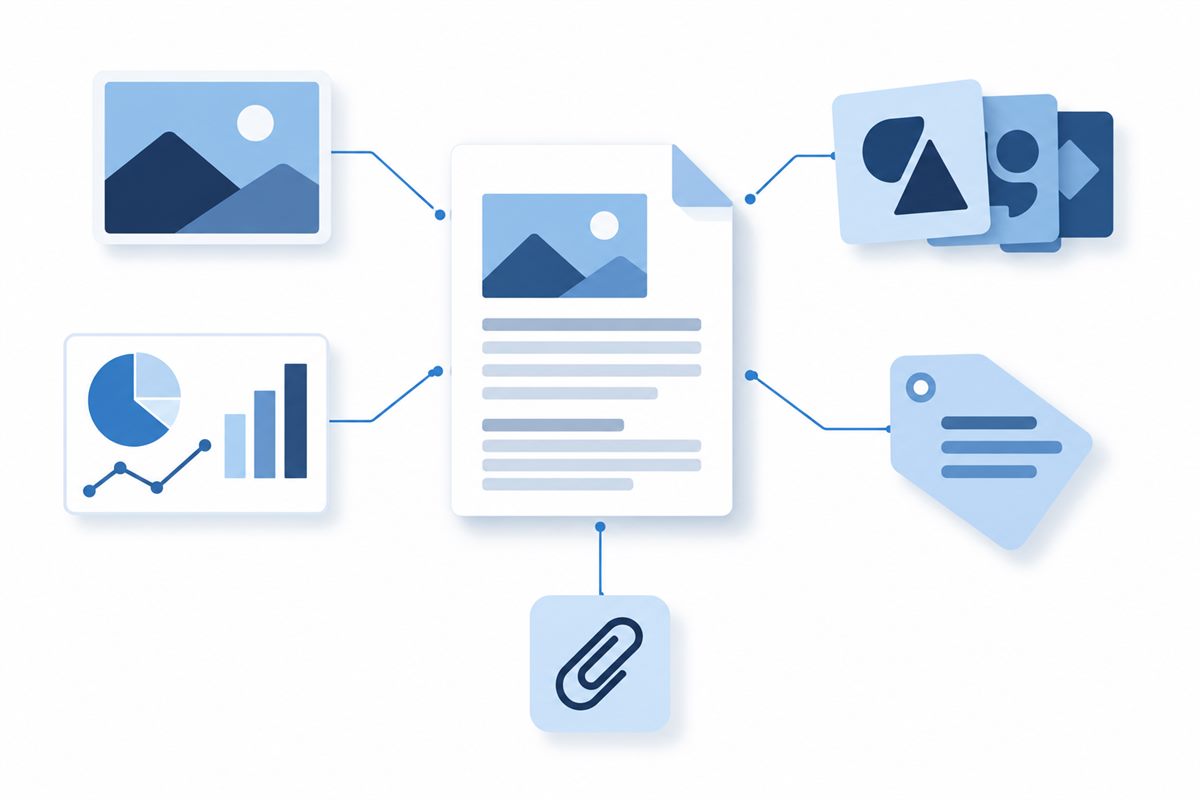
Can you select text in the original? Then the PDF contains text data. If a page behaves like one large picture, it may be a scan. Converting text pages into images makes that text unsearchable; reducing a scan’s resolution can blur the letters themselves.
Lossless and lossy compression
Lossless optimization changes how data is stored or removes redundant material without intentionally changing the page’s appearance. Text and image quality can be preserved, though savings may be modest, especially if the PDF is already optimized.
Lossy compression reduces image data, for example by lowering resolution or recompressing a photo. The file may get much smaller, but some detail is discarded. Fine print, thin lines and textured photos can look soft or blocky. You can’t recover the original detail from the compressed copy.
| What you need | Safer starting point | Check before sharing |
|---|---|---|
| Searchable text and working links | Lossless optimization | Search for a word; test links and forms |
| Screen viewing of a photo-heavy PDF | Moderate image reduction in a tool with adjustable settings | Inspect small text and photos at 100% |
| Print-ready pages | Keep the original or ask the print provider | Confirm their resolution and color requirements |
| A quick, smaller preview copy | A stronger lossy setting may be acceptable | Keep the original and label the copy clearly |
The right resolution depends on page size and intended use. 150 DPI isn’t a universal safe setting. Check the output itself, and ask the print provider before reducing a file meant for print.
What this site’s PDF compressor actually does
The PDF compressor renders each page in your browser at 72 DPI, encodes it as a JPEG at a fixed quality setting, then builds a new PDF from those page images. There’s no quality slider or target-size option. Image-heavy files may shrink, but results vary, and the output isn’t guaranteed to be smaller.
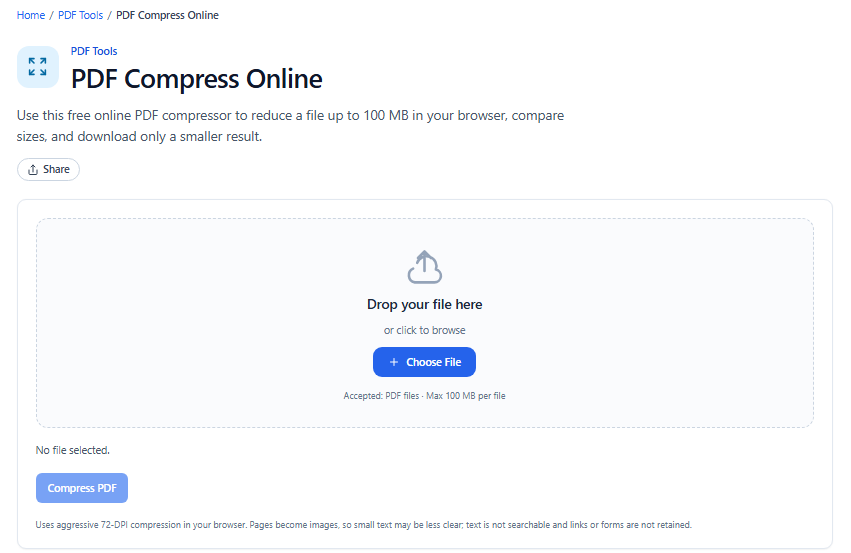
Original illustration created for this guide.
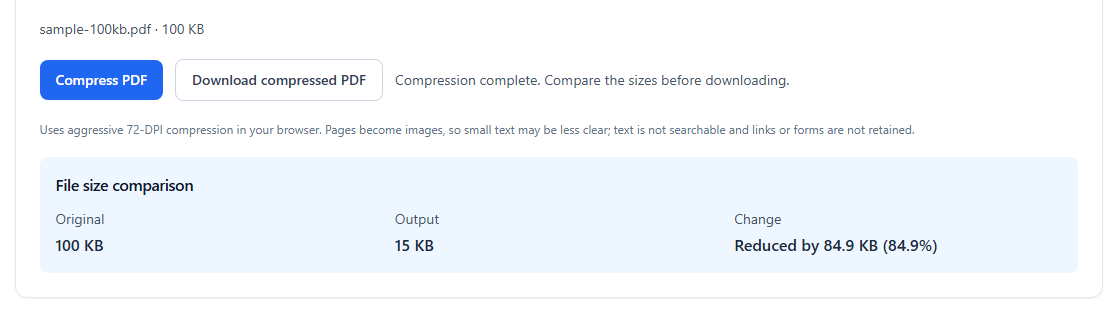
The sample shown went from 100 KB to 15 KB. Your result will depend on the document; the tool only provides a download when the output is smaller.
This is lossy, image-based compression, not lossless optimization. The new pages have no selectable or searchable text, and links, forms and layers aren’t carried over. Fine text may blur. The tool accepts PDFs up to 100 MB and 100 pages, with an additional limit on total rendered pixels. It offers a download only if the result is smaller than the original.
Use it for a throwaway copy when an image-based PDF is fine, such as a quick scan preview. If you need searchable text, crisp print output or working interactive features, use a lossless optimizer instead. The compressor processes the file in your browser; it isn’t uploaded. Keep the original regardless.
A careful way to reduce a PDF
- Keep the original. Save the compressed copy under a different name. If the result is too soft or missing features, you can start over.
- Check what kind of PDF you have. Select a sentence and search for a word. If the document is a scan, it may need OCR separately to make its text searchable.
- Pick a method that fits. For important documents, start with lossless optimization. For a photo-heavy PDF meant for screen reading, an adjustable tool lets you compare image settings. This site’s fixed 72-DPI setting is a much stronger trade-off.
- Look beyond the file size. Open both versions side by side, zoom to 100%, and inspect small text, thin chart lines, logos and photos.
- Test what you rely on. Search for a word, click links, and try any forms or annotations. Page-image output won’t preserve these features.
- Choose the better copy. If details are visibly worse, text is hard to read, or features are missing, use the original or a gentler method.
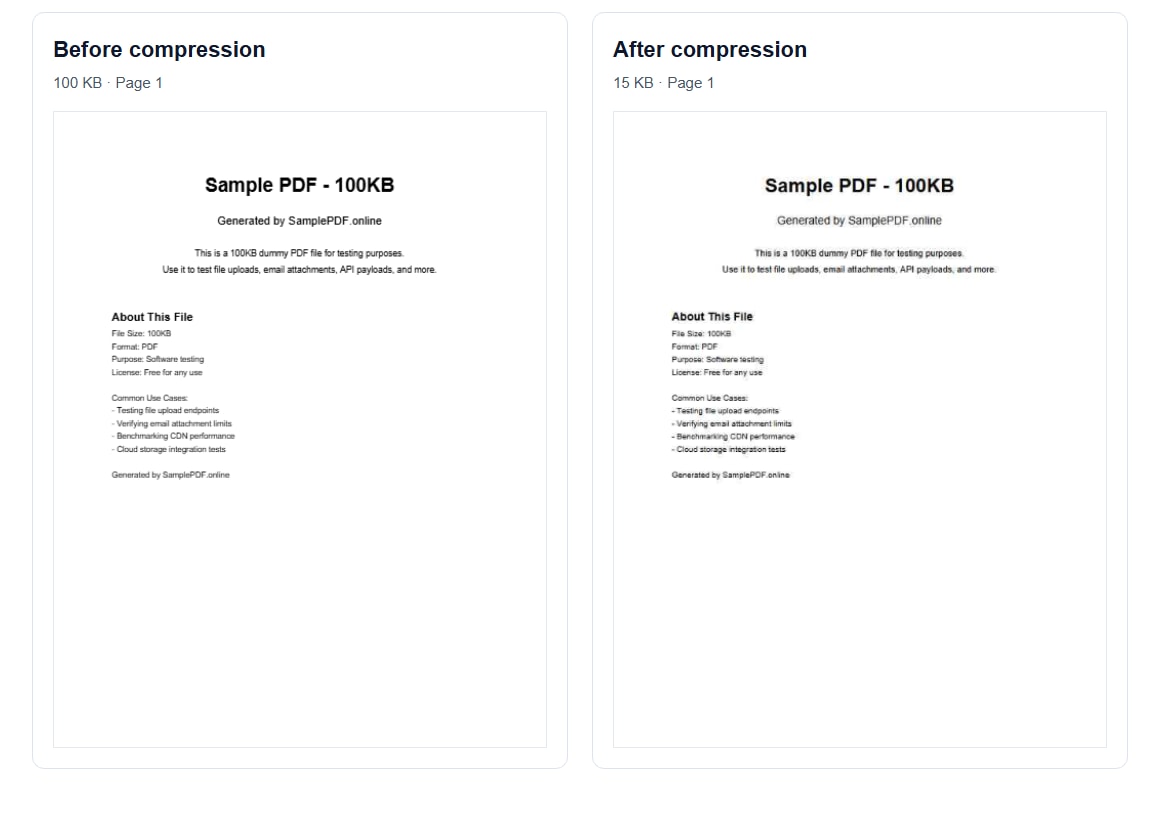
This shows page 1 of the attached sample before and after compression: 100 KB down to 15 KB. Other PDFs may compress differently.
Getting a PDF under an email limit
Email limits depend on the provider and account. Standard personal Gmail allows up to 25 MB of attachments per message (Google’s Gmail attachment guidance); check the current rules for you and your recipient. Some mail systems add encoding overhead or set lower limits, so leave room. If the PDF is still too large, a trusted sharing link beats compressing it until the pages are hard to read.
For scans, reduce the resolution at the source: scan only as large as the intended use requires, and choose grayscale for pages that don’t need color. Both choices affect image detail. Keep a high-quality master if the scan may later be printed or used as a record.
Other ways to make a PDF smaller
- Go back to the source. If you have the original Word or presentation file, resize oversized pictures before exporting a new PDF.
- Try an optimizer with controls. A desktop PDF editor may let you set image resolution and quality while retaining text and other content. Check its output and settings; names vary by product.
- Split the file. If the recipient can accept multiple documents, use Split PDF to separate the pages instead of sacrificing image quality to meet a size target.
- Don’t recompress the compressed copy. Each lossy save can add blur and artifacts. Start from the original if you want to try again.
- Skip ZIP as a fix. PDF content is commonly compressed already, so an archive usually saves little.
When not to compress
Don’t change a digitally signed PDF after signing; edits can invalidate its signature. For legal records, PDF/A archives or files for professional printing, check the requirements before making changes. Keep an untouched copy of important files, and only process documents you’re authorized to handle.
Choose a readable file size
For email, aim for a file that’s small enough to send and still easy to read. If image-based pages are acceptable, try the PDF compressor. Otherwise, use a lossless optimizer or share the original through a trusted link.
For related file workflows, read our guides to compressing images and choosing between JPG, PNG and WebP. You can also split a PDF or merge PDF files in your browser.
Frequently asked questions
Can I compress a PDF without losing quality?
Sometimes. Lossless optimization doesn't intentionally reduce image quality, but may save little space. With lossy compression, a change can be hard to see at normal zoom and obvious when enlarged.
Will the PDF Compress Online tool keep selectable text?
No. The tool rebuilds every page as a 72-DPI JPEG image. Text isn't searchable or selectable, and links, forms and layers aren't retained.
Why is my PDF still large after compression?
It may already be compressed, or its contents may not suit this method. The tool's fixed setting can't promise a particular size. If the output isn't smaller, keep the original and try another method.
Can I make a PDF smaller than 1 MB?
No setting guarantees that. The result depends on the pages and their contents. Strong compression can make text or photos hard to read. Splitting the PDF or sharing a link may work better.
Is it safe to compress a PDF in a browser?
It depends on the service. This site's compressor processes the PDF in your browser and doesn't upload it. Check any service's privacy information, and don't use sensitive files on a device or site you don't trust.
Can I compress a password-protected PDF?
This tool doesn't support encrypted or password-protected PDFs. Only unlock a document if you have permission, then choose an appropriate way to compress it.
Should I compress a signed or archival PDF?
Avoid changing a digitally signed PDF because edits can invalidate its signature. For archival, legal or print-ready files, check the applicable requirements and keep an untouched original.
Try the tools in this guide
- PDF Compress Online Use this free online PDF compressor to reduce a file up to 100 MB in your browser, compare sizes, and download only a smaller result.
- Split PDF Extract selected page groups from a PDF into separate documents, then download them together as a ZIP file processed in your browser.
- Merge PDF Use this free PDF merger to merge PDF files, combine documents in order, select pages, and download one file from your browser.
Related guides
- Compress Images Without Losing Quality Shrink image files for email, uploads and websites while keeping them sharp. Learn what makes files large and the settings and order of steps that help.
- JPG vs PNG vs WebP: Which Format to Use JPG, PNG and WebP compress images differently. Learn how each one works, where each fits best, and how to convert between them in your browser.
Related tools
- PDF to Markdown Converter Extract editable Markdown from text-based or scanned PDFs locally, with optional OCR and image export.
- Markdown to PDF Converter Convert Markdown to PDF online for free with a live preview and page-layout controls. Write or upload a .md file, then download a PDF or standalone HTML in your browser.
- Image to PDF Converter Combine photos, scans and receipts into a single PDF — reorder, rotate and set the page size, privately in your browser.